How to Convert Video to Notes Efficiently for Better Learning
Ever hit play on a lecture or tutorial and realize you'll need half an hour just to skim it before you can actually use the info?
That feeling of drowning in endless video content is the exact reason we built YTSummarizer – to turn video to notes in seconds, so you can get the gist without the grind.
Imagine you're a student cramming for finals. Instead of watching a two‑hour documentary, you paste the link, click "summarize," and get bullet‑point notes that capture the key concepts. You can flash those notes while you sip coffee, and still have time to review the textbook.
Professionals face a similar jam. A marketing manager might need the highlights from a recent industry webinar. With a quick video‑to‑notes conversion, they can pull out the stats, strategies, and takeaways, then slide them straight into a deck.
Content creators also love this trick. Before they film a follow‑up video, they skim their own previous footage, extract the main points, and decide what fresh angle to add. It's like having a personal editor that reads the tape for you.
Researchers, on the other hand, often sift through dozens of conference talks. Turning each video into concise notes lets them map trends, compare findings, and cite only the most relevant clips.
So, how does the magic actually work? Our AI scans the audio, picks out sentences that carry the most weight, and rewrites them into clean, readable bullet points. No more pausing, rewinding, or scribbling frantic notes on a napkin.
Sounds too good to be true? It isn't. The same tech that powers chatbots today is now fine‑tuned for summarizing video content, meaning you get accurate, context‑aware summaries every time.
Ready to stop letting videos eat up your schedule? Let's dive deeper into the steps you can take to convert any video into actionable notes and reclaim your time.
TL;DR
Transform endless video lectures into bite‑size notes instantly, quickly, so you can study, present, or research without the time‑suck of watching full recordings.
Our AI‑driven YTSummarizer extracts key points, formats them as clear bullet lists in seconds, and lets you focus on action instead of rewinding any topic easily today.
Table of Contents
- Step 1: Choose the Right Video‑to‑Notes Tool
- Step 2: Capture Video Content Effectively
- Step 3: Convert Video Speech to Text
- Step 4: Organize Transcripts into Structured Notes
- Step 5: Review, Edit, and Export Your Notes
- FAQ
- Conclusion
Step 1: Choose the Right Video‑to‑Notes Tool
Ever felt that sinking feeling when you realize you could spend an hour watching a tutorial, but you only need the key takeaways? Yeah, we've all been there. The first thing you need to stop that waste is picking a tool that actually understands what you want out of a video‑to‑notes conversion.
So, what should you look for? First, accuracy. A good tool should pull out the real meat of the conversation, not just random sentences. Second, speed – you don't want to wait five minutes for a two‑minute clip. Third, format flexibility: can you get bullet points, outlines, or even a quick slide deck? And finally, ease of use – if the UI feels like a maze, you'll end up abandoning it.
In our experience, AI‑driven platforms tend to hit the sweet spot on accuracy because they've been trained on massive language models. They can distinguish between fluff and substance, so the notes you get actually help you move forward. Speed is another win‑point; most modern services deliver results in seconds, which means you can jump straight from "watch" to "apply".
If you're wondering where to start, check out How to Summarize Any YouTube Video with AI. It walks you through the whole process, from pasting a link to tweaking the output style, and it's built right into the YTSummarizer workflow we love.
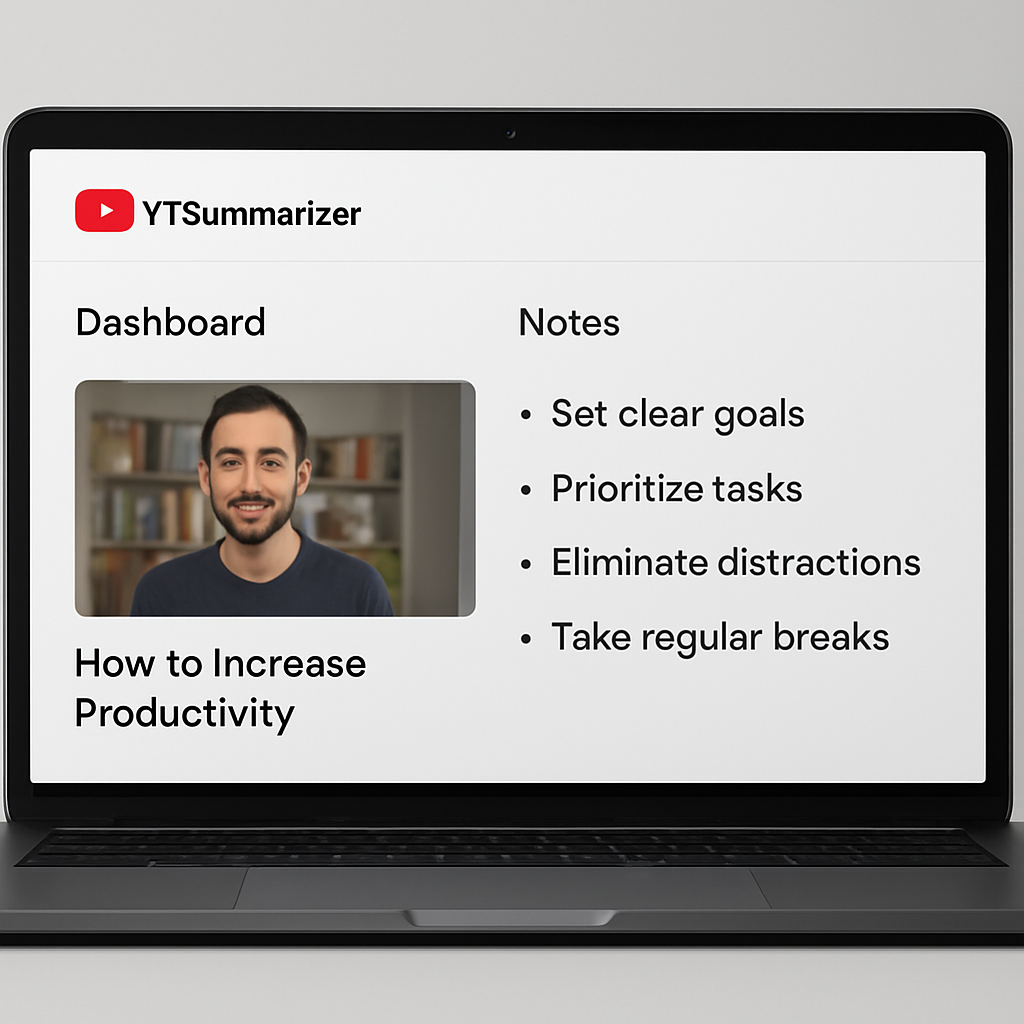
Here's a quick visual of the workflow in action:
After you've tried a demo, take a step back and judge the user interface. Is the button to "summarize" obvious? Can you edit the output without hunting through menus? A clean UI saves you mental bandwidth, letting you focus on the content instead of figuring out how to click.
Pricing is another piece of the puzzle. Some services charge per minute of video, others offer flat‑rate subscriptions. Think about how often you'll be summarizing – a student cramming for finals might need unlimited access, while a marketer who only needs occasional webinar highlights could stick with a pay‑as‑you‑go plan.
Bottom line: choose a tool that nails accuracy, delivers fast, formats the way you need, and feels effortless to use. Once you've found that sweet spot, you'll turn hours of video into minutes of actionable insight – and you'll finally have time for the coffee break you deserve.
Step 2: Capture Video Content Effectively
Ever hit play on a lecture and felt the video was a blur of faces and background noise? You're not alone. The first thing we need to do is make the source video as clear as possible before we hand it over to any "video to notes" engine.
Here's the quick reality check: bad audio = garbage notes. If the AI can't hear the speaker, it can't write down the key point. So grab a pair of headphones, close any windows, and make sure the volume is cranked up just enough that the speech is crystal‑clear. A little extra effort now saves you from hunting down missing data later.
Next, think about the visual side. Even though the summarizer works mostly off the audio, a well‑framed video helps the AI spot speaker changes and context cues. Center the presenter, remove distracting overlays, and if you can, turn off background music. It's the same principle we use when we test tools – a clean feed yields a clean summary.
So, what should you actually do? Let's break it down into three bite‑size actions:
1. Optimize the audio track
- Use a microphone closer to the speaker's mouth – even a basic lapel mic beats a laptop's built‑in.
- Avoid rooms with echo; carpets and curtains dampen sound reflections.
- If you're recording from a YouTube link, make sure the original video has a high bitrate. Check the settings gear on YouTube; pick 720p or higher.
2. Frame the subject properly
- Position the camera at eye level; this keeps faces clear and makes the AI's speech recognition happier.
- Avoid extreme close‑ups or wide shots. A mid‑range frame gives enough context without wasting pixels on empty space.
- If there's text on the screen (like slides or whiteboards), keep the camera steady so the AI can pick up key terms.
3. Prepare the file format
- MP4 is usually the safest bet – most platforms accept it without fuss.
- Keep the file under 500 MB if you're uploading to a free‑tier service; larger files might hit a paywall or take forever.
- If you're pulling from YouTube, copy the link instead of downloading. Tools like YTSummarizer can pull directly from the URL, which is faster and cleaner.
Once you've locked down good audio, a stable frame, and a clean file, you're golden. The next step is feeding that video into your chosen tool and watching the magic happen – which we'll cover in the next section. For now, just know that a little prep work on the capture side pays off big time when you see those crisp notes roll in.
Step 3: Convert Video Speech to Text
So you've got a clean video file, and now it's time for the moment of truth: turning those spoken words into text you can actually read and edit. This is where the rubber meets the road – or where the audio meets the algorithm, if you want to get technical.
First, you'll need a speech‑to‑text engine. Most modern "video to notes" platforms come with this built in, but if you're rolling your own, you'll find options like Google Speech‑to‑Text, Amazon Transcribe, or even open‑source models like Whisper. The key here is accuracy: a good engine will catch accents, technical jargon, and even mumbly speakers without turning your lecture into gibberish.
Here's the process in a nutshell: You upload (or link to) your video. The tool strips out the audio track, sends it through the speech recognition engine, and spits back a raw transcript. At this stage, it's just a wall of text – no bullet points, no headings, no structure. But that's fine; structure comes later. Right now, you're just making sure every word is accounted for.
What should you watch for? First, timestamps. A good transcript will include markers like "[00:03:45]" so you know when each sentence was spoken. This is gold for students who need to jump back to a specific section or for researchers who want to cite exact moments. Second, speaker labels. If your video has multiple voices, you'll want the tool to tag each one (Speaker 1, Speaker 2, etc.) so you can track who said what.
Now, let's talk errors. Even the best AI isn't perfect. You'll occasionally see words that don't quite fit – "their" instead of "there," or "bass" instead of "base." The fix? A quick scan. Most platforms let you edit the transcript in‑app, so you can catch the obvious mistakes before you move on. If you're in a hurry, you can skip this step and just trust the AI's best guess – it's usually 90–95% accurate anyway.

Once you've got a clean transcript, you're halfway home. The next step is to take that wall of text and organize it into something you can actually use – which we'll dive into in Step 4. For now, just make sure your words are locked in, because everything that follows depends on this foundation.
Step 4: Organize Transcripts into Structured Notes
Okay, you've got a wall of text staring back at you. Now what? This is where the real power of "video to notes" conversion kicks in: turning that raw transcript into a structured outline that actually makes sense.
First, you'll want to identify the main themes. Most AI‑driven tools will do this automatically – they scan the transcript, pick out recurring keywords, and cluster sentences around those topics. For example, if your lecture mentions "photosynthesis" fifteen times, the AI will group all related sentences under a "Photosynthesis" heading. If you're doing this manually, just skim the text and note where the speaker shifts gears. Each shift is a potential section header.
Next, break it down into bullet points. A good rule of thumb: if a sentence contains a key fact, a definition, or an action item, it deserves its own bullet. Fluff and filler ("Um, so, you know…") can be trimmed. The goal is to distill the transcript to the stuff that matters – the insights you'll actually reference later.
Here's a practical example: imagine you've got a marketing webinar transcript. The AI might pull out bullets like:
- Q1 revenue up 15% year‑over‑year
- New product launch scheduled for March
- Target demographic: ages 25–40, urban centers
- Key channels: Instagram, TikTok, email
Each bullet is a standalone fact you can drop into a presentation or report. No need to watch the whole video again – you've got the highlights right there.
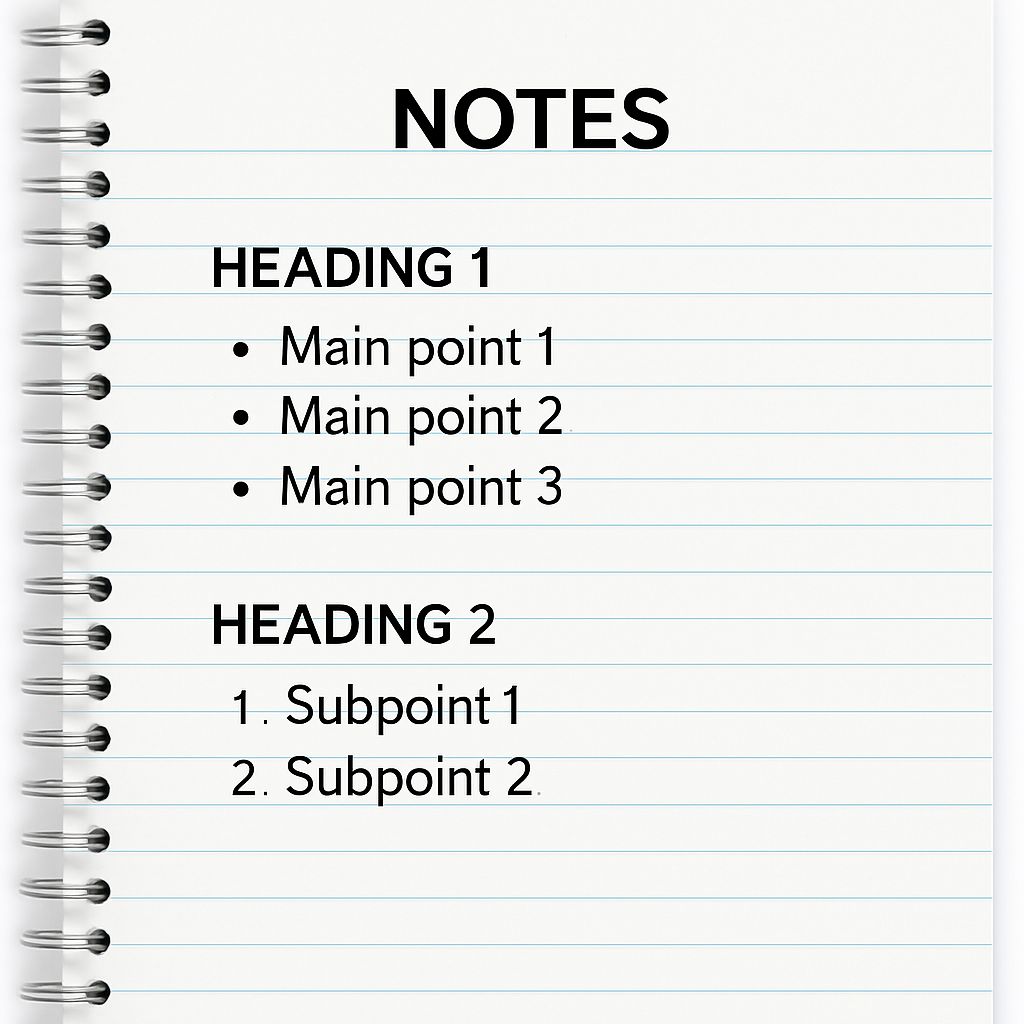
What if you need more structure? Some tools let you add sub‑bullets, create nested lists, or even tag each note with keywords. If you're a student, you might tag notes by chapter or exam topic. If you're a researcher, you might tag by author or date. The point is, the more organized your notes are now, the easier they'll be to search and cite later.

One last tip: don't overthink it. The first pass doesn't have to be perfect. You can always come back and refine the structure once you've used the notes for a bit. The key is to get from "wall of text" to "scannable outline" as fast as possible, so you can move on to the next video (or the next coffee break).
Step 5: Review, Edit, and Export Your Notes
You've got your structured notes – nice work. But before you call it done, take five minutes to review. This is where you catch any lingering errors, tweak the phrasing, and make sure the notes actually match your needs.
Start with a quick scan. Read through each bullet point and ask: "Does this make sense out of context?" If you see a bullet like "He said the thing was good," that's too vague. Swap it for "Professor Jones praised the new protocol for its efficiency." Specificity matters, especially if you'll be sharing these notes with classmates or colleagues.
Next, check for redundancy. AI tools sometimes repeat the same idea in slightly different words. If you see two bullets that say essentially the same thing, merge them. Less clutter = faster reviews down the road.
Now, think about formatting. Most platforms let you export to .txt, .md, .docx, or even .pdf. Pick the format that fits your workflow. Students might love .md for easy paste into Notion. Marketers might grab .docx to drop into a team report. Researchers might stick with .txt for archiving. The choice is yours – just make sure the export preserves your headings and bullets.
One pro move: add your own commentary. If you spot a bullet that sparks an idea, drop a quick note at the bottom ("Follow up: compare this approach to Smith's 2019 paper"). These personal annotations turn your notes from a passive transcript into an active research tool.

Finally, hit export. Save the file to your preferred cloud storage (Google Drive, Dropbox, whatever) so you can access it from any device. Now you've got a clean, portable summary that took minutes to create instead of hours to transcribe by hand. That's the power of "video to notes" in action.
Conclusion
So there you have it: a five‑step blueprint for turning any video into actionable notes without burning through your afternoon. We started by picking a tool that nails accuracy and speed, prepped the video for clean capture, converted speech to text, organized the transcript into structured bullets, and wrapped it up with a quick review and export.
The real magic here isn't just the tech – it's the time you get back. Students can cram more efficiently, professionals can extract insights faster, and creators can repurpose content with less friction. That's why "video to notes" conversion has become such a game‑changer for anyone who values their schedule.
If you're ready to try it yourself, head over to YTSummarizer and paste in a link. See how fast you can go from "long video" to "short notes". And if you want to dive deeper into the how‑to, check out How to Summarize Any YouTube Video with AI for a full walkthrough.
Bottom line: don't let videos hold you hostage. With the right tools and a little know‑how, you can turn hours of watching into minutes of reading – and finally have time for the things that actually matter.
Ready to save hours?
Transform any YouTube video into organized notes in seconds.
Start Converting Videos to NotesFrequently Asked Questions
Can I use video to notes on private or unlisted YouTube videos?
It depends on the tool. Most platforms can handle unlisted videos if you have the direct link, but private videos require authentication. Check your tool's docs to see if it supports OAuth logins.
How accurate is the speech‑to‑text conversion?
Modern AI engines hit 90–95% accuracy on clear audio. Accents, technical jargon, and background noise can lower that, but a quick manual review usually catches any glaring errors.
What file formats can I export my notes to?
Most tools offer .txt, .md, .docx, and .pdf. Pick the format that fits your workflow – .md for note‑taking apps, .docx for reports, .pdf for archiving.
Do I need to download the video first?
Not usually. Tools like YTSummarizer can pull directly from a YouTube URL, which is faster and cleaner than downloading.
Can I batch‑process multiple videos at once?
Some platforms support batch processing for playlists or multiple URLs. Check the pricing tier – batch features are often reserved for paid plans.
Will the notes capture everything the speaker says?
The transcript will, but the structured notes focus on key points. If you need every word, keep the full transcript; if you just need the highlights, use the bullet‑point summary.
What if the video has multiple speakers?
Good tools will label each speaker (Speaker 1, Speaker 2) so you can track who said what. This is especially useful for panel discussions or interviews.